DJ Radio: local radio automation you run yourself
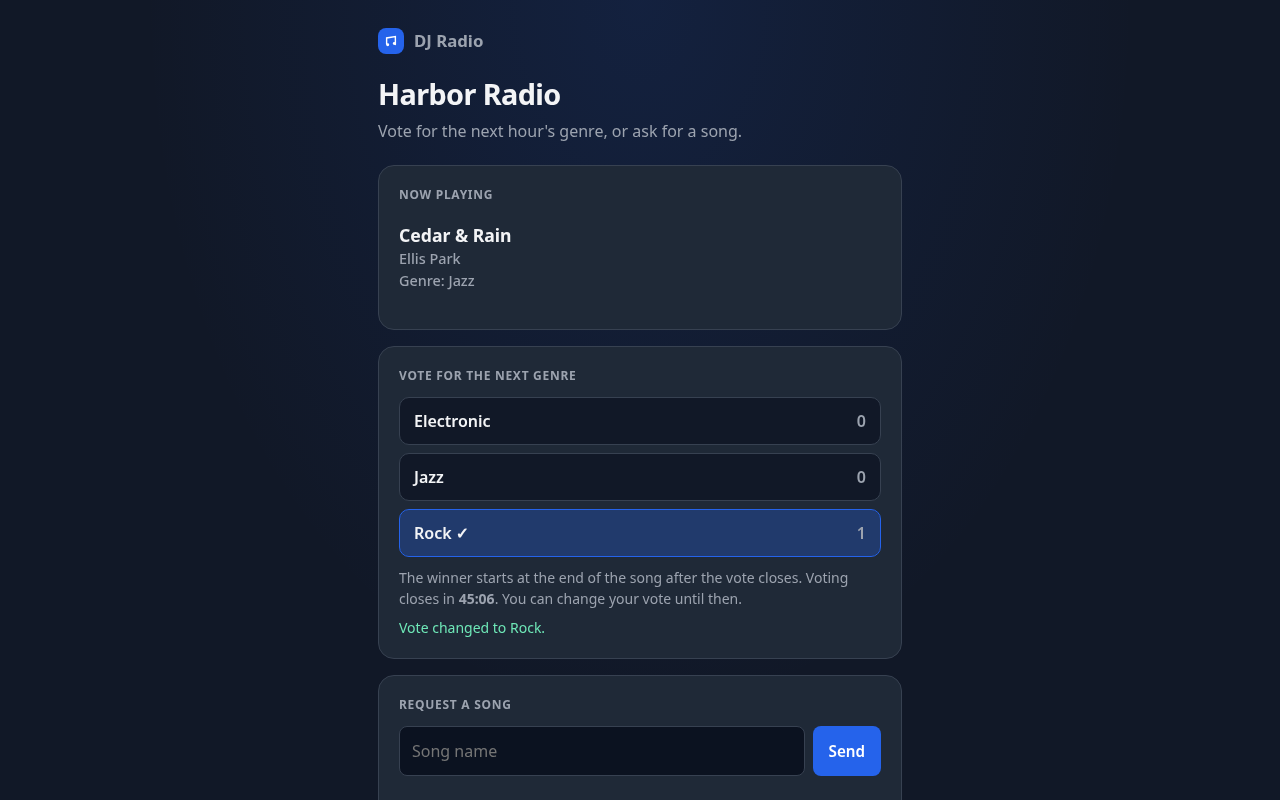
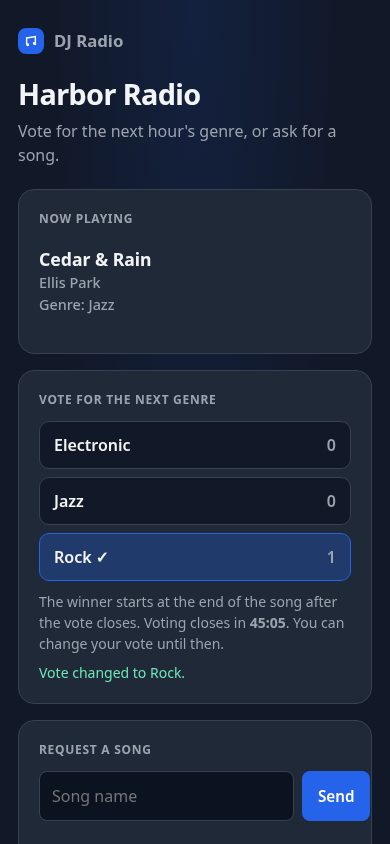
DJ Radio is radio automation software for your own PC: a radio station that plays from the music folder you already have. You control it from a dashboard in your browser. OBS loads a player page for the stream. Fans get a link where they vote on the next hour’s genre, or ask for a song.
A $5/month key runs the whole station. Also use Music Master? Both together are $9/month (combo), or upgrade an existing key and only pay the difference for the rest of the month. Or try a free 12-hour demo (enough for one YouTube stream): download DJ Radio and choose Start 12-hour free demo (email only, no card). You can cancel any time; a key runs to the end of the month you paid for. Paying also gives you a license to use what you make with the station commercially, with no expiration. You own those results; we claim no rights to them. Work you create while subscribed stays licensed for commercial use even after you cancel. See the Terms.
Own your stuff
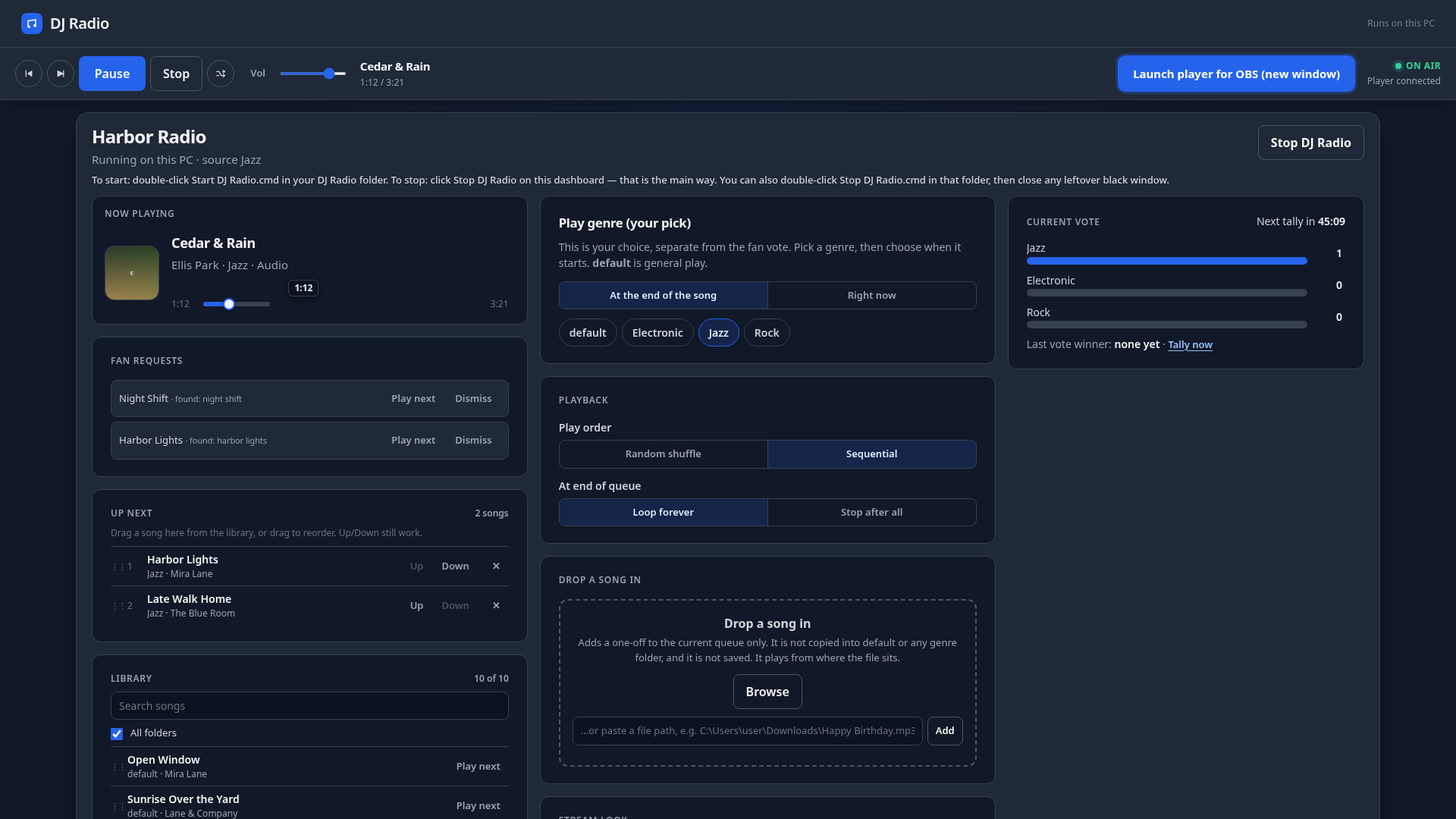
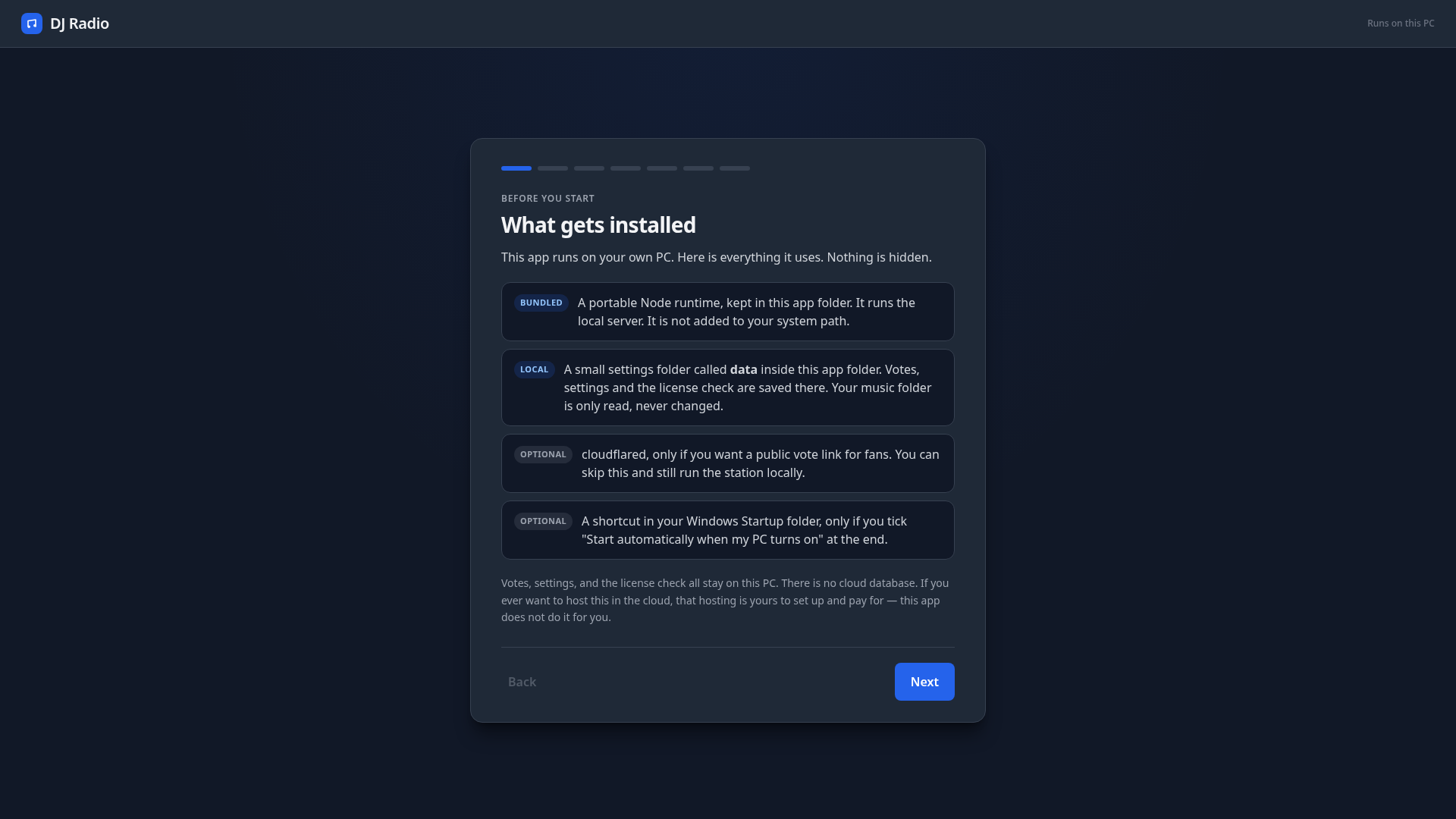
DJ Radio is a folder you unzip and run on your computer. It reads your music in place and never moves or copies those files. Votes, settings and the license check are saved in a small data folder next to the app. There is no cloud music library and no cloud database.
The dashboard and the OBS player run only on this PC (http://127.0.0.1). The vote page is the only thing you can share with fans, and only if you turn that link on.
What it does
- Plays the songs in your station folder: mp3, wav, and midi. Genre folders you already use become the genres fans can vote on. A default folder is general play. Images go in an images folder for the stream look.
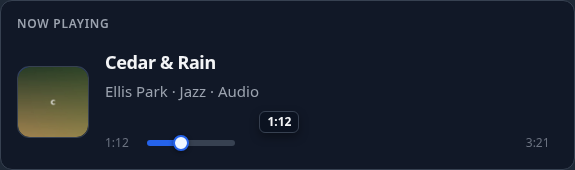
- A Now Playing seek slider lets you drag, click, or use the arrow keys to jump in the current song. The OBS player page follows the seek, because that page is what produces the audio.
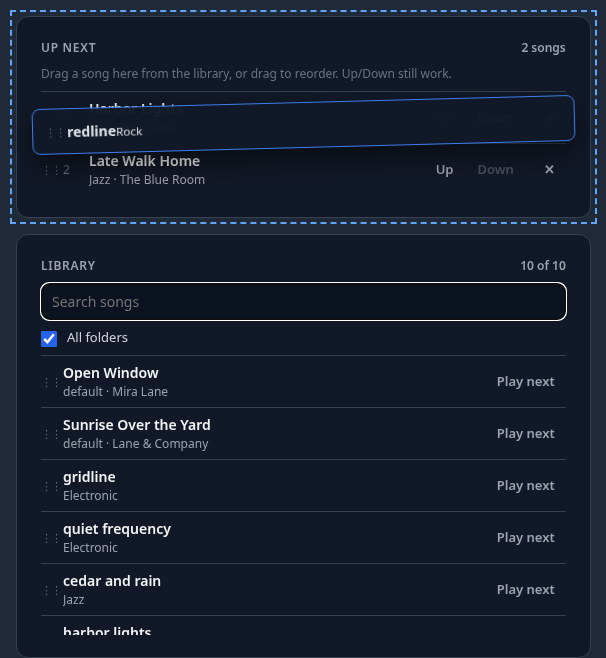
- A searchable library of every song. Drag a track into Up Next, drag to reorder, or click Play next.
- You can pick a genre yourself, at the end of the song or right now, separately from the fan vote.
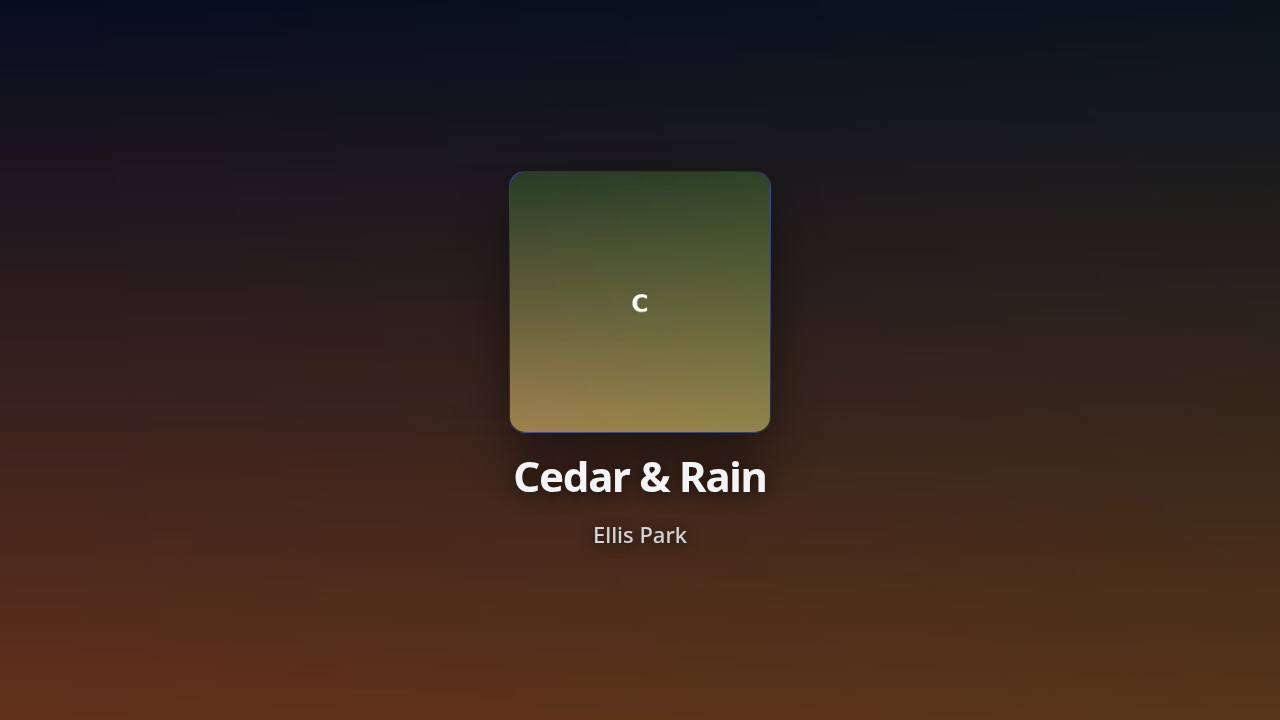
- Add the player page as a 1280×720 Browser Source in OBS (Monitor and Output). Title, art and background are controlled from Stream look on the dashboard.
- Fans open the vote link: no sign-up, no tracking. They vote for the next hour’s genre or request a song. Hosted on your PC.
How to start and stop
Unzip the DJ Radio folder anywhere (Desktop is fine).
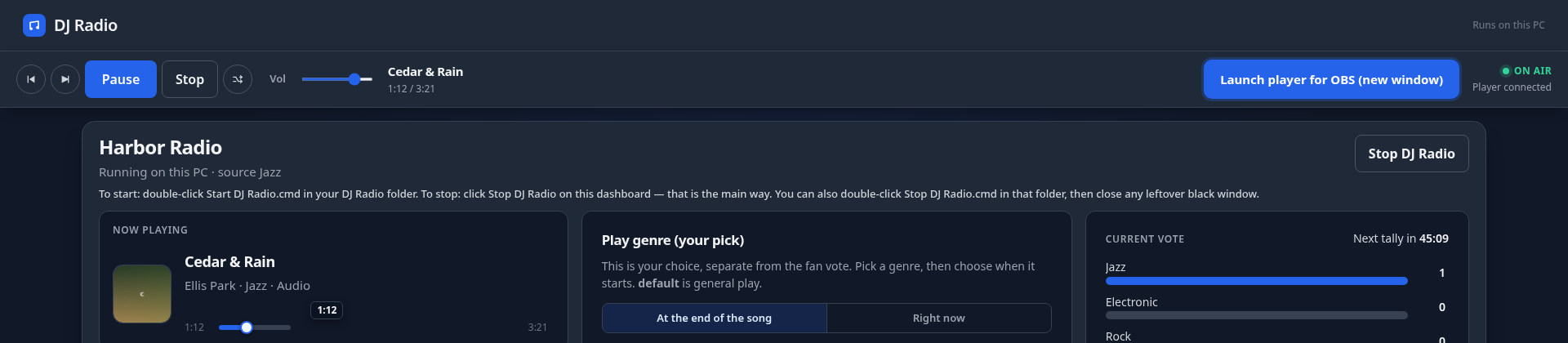
- Double-click Start DJ Radio.cmd. A black window opens and your browser opens the setup. Leave this window open; close it or run Stop DJ Radio to stop.
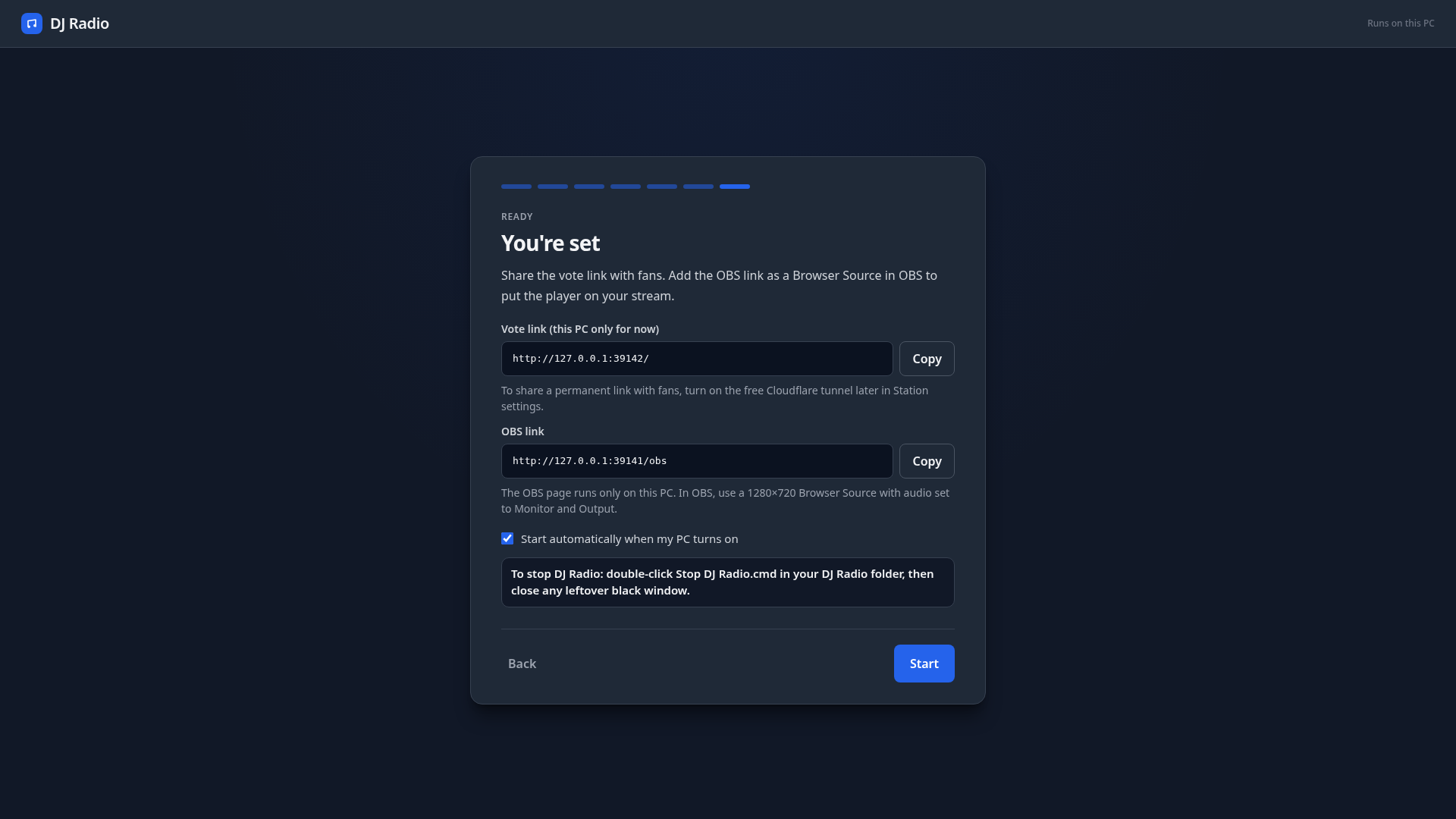
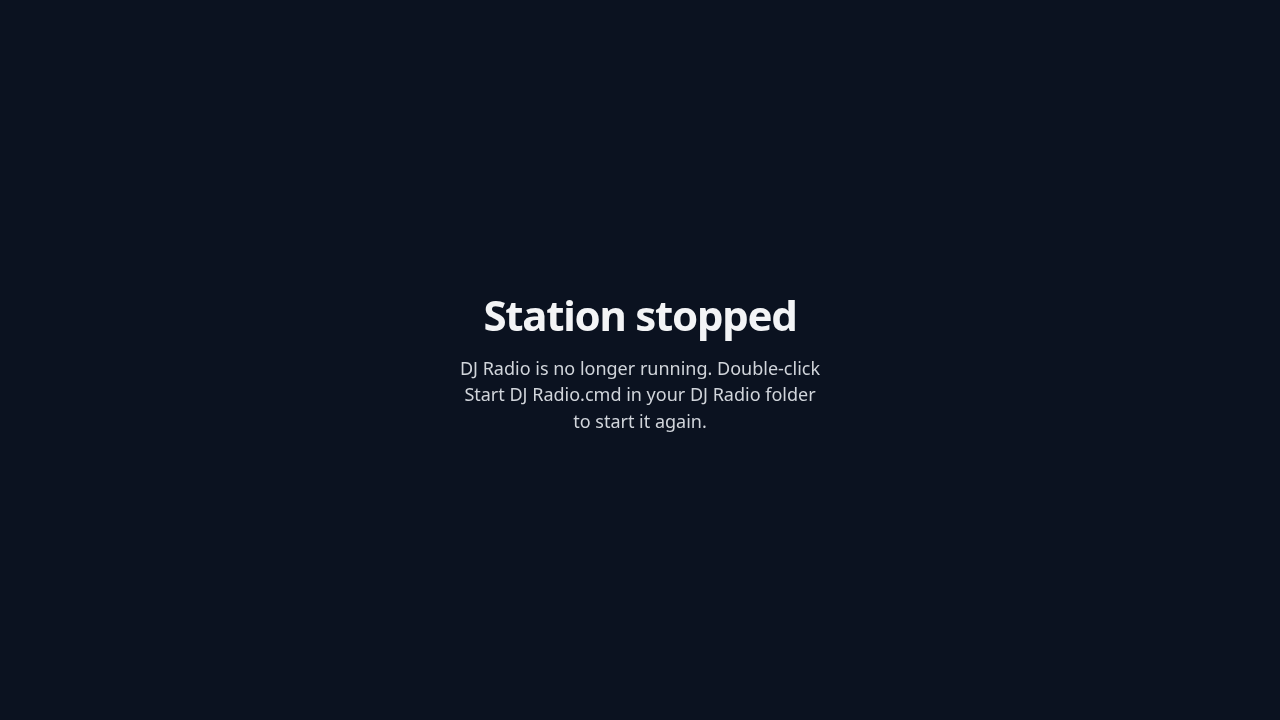
- To stop: click Stop DJ Radio on the dashboard — that is the main way. You can also double-click Stop DJ Radio.cmd in that folder, then close any leftover black window.
On first start, DJ Radio asks for a key: start the free 12-hour demo (enough for one YouTube stream), subscribe for $5/month, or paste a key you already have. Then the setup walks you through your station name and your music folder. At the end it shows the OBS link and how to stop.
The $5/month key and the free 12-hour demo
A $5/month key runs the whole station: playback, the OBS player, the dashboard and the fan vote link. You can cancel any time; it runs to the end of the month you paid for. Paying also gives you a license to use what you make with the station commercially, with no expiration. You own those results; we claim no rights to them. Work you create while subscribed stays licensed for commercial use even after you cancel. It does not grant rights to music or other material you do not already own. See the Terms.
Try it first with a free 12-hour demo (enough for one YouTube stream). Type your email in the app; no card. The demo key belongs to AI Playground LLC and you borrow it for 12 hours. It is tied to your email, one demo per email, and it is not an account. The dashboard shows the time left, with a Subscribe button.
When a demo or subscription ends, the station stops cleanly and asks for a key. Your settings are kept, and Stop DJ Radio always works.
A $5/month key runs the whole station. Also use Music Master? Both together are $9/month (combo), or upgrade an existing key and only pay the difference for the rest of the month. Or try a free 12-hour demo (enough for one YouTube stream): download DJ Radio and choose Start 12-hour free demo (email only, no card). You can cancel any time; a key runs to the end of the month you paid for. Paying also gives you a license to use what you make with the station commercially, with no expiration. You own those results; we claim no rights to them. Work you create while subscribed stays licensed for commercial use even after you cancel. See the Terms.
Download
DJ Radio is a zip you unzip on your Windows PC. This is v2l.
SHA-256: 10e709e706825a1b03fe44c586aeacf1e8f31e2b10f9f637487591ad5b20659e
Unzip the DJ Radio folder, then follow the start and stop steps above.
Questions and answers
- How much does DJ Radio cost?
- A $5/month key runs the whole station. Or try a free 12-hour demo (enough for one YouTube stream); email only, no card, one demo per email. You can cancel any time; a key runs to the end of the month you paid for. Paying also gives you a license to use what you make with the station commercially, with no expiration. You own those results; we claim no rights to them. Work you create while subscribed stays licensed for commercial use even after you cancel. It does not grant rights to music or other material you do not already own.
- Can I use my station commercially?
- Yes. A paid key gives you a license to use your station, streams and other results from DJ Radio commercially, with no expiration. You own those results; we claim no rights to them. Work you create while subscribed stays licensed for commercial use even after you cancel. It does not grant rights to music or other material you do not already own.
- What is DJ Radio?
- DJ Radio is radio automation software that runs on your own Windows PC. It plays from the music folder you already have, you control it from a dashboard in your browser, OBS loads its player page for your stream, and fans can vote on the next hour's genre or request a song over a link.
- Does DJ Radio upload my music?
- No. It reads your music in place and never moves or copies those files. Votes and settings are saved in a small data folder next to the app. There is no cloud music library and no cloud database.
- Which music files does it play?
- mp3, wav and midi files in your station folder. Genre folders you already use become the genres fans can vote on, and a default folder is general play.
- How do I add DJ Radio to OBS?
- Add the player page as a 1280×720 Browser Source in OBS, with audio set to Monitor and Output. The player page produces the audio and shows the current song. Title, art and background are set from Stream look on the dashboard.
- How do fan votes and requests work?
- Fans open your vote link with no sign-up and no tracking. They vote for the next hour's genre or ask for a song. The vote page is hosted on your PC, and it is the only part you can share with fans, only if you turn that link on.
- How do I start and stop it?
- Unzip the DJ Radio folder anywhere and double-click Start DJ Radio.cmd. To stop, click Stop DJ Radio on the dashboard, or double-click Stop DJ Radio.cmd in the same folder.
More from AI Playground
Want a live chat for the same stream that you host yourself? See VIP Chat. Need something custom built? See Hire Me.